Perform Network Throttling in Chrome to Simulate Poor Network
This detailed guide explores what Network Throttling is and how Chrome developer tools slow down network using two different
What is Network Throttling?
Network Throttling is an intentional method to slow down the internet speed. It is used to analyze web performance where network throttling, or network condition emulation is used to emulate low bandwidth conditions.
Why is Network Throttling important?
Network Throttling is done to test the website and get first-hand real user experience that many users with slower networks face in real world. This is a way to test the web application under real user conditions and understand the performance of the website.
Network simulation helps developers or QAs simulate the performance of a website in different bandwidths like 2G, 3G, 4G, etc. This is extremely useful from a testing standpoint as testers get a sense of how the website loads and functions when accessed from different internet connections.
| Network Type | Download (Mbps) | Upload (Mbps) | Latency (ms) |
|---|---|---|---|
| Slow (2G) | 0.25 | 0.05 | 300 |
| Average (3G) | 1 | 0.5 | 100 |
| Fast (4G) | 20 | 10 | 20 |
This article will demonstrate two methods, using which testers can simulate poor network conditions while testing websites in Chrome.
How to Network Simulation Using Chrome DevTools
Chrome browser provides a network throttler in its DevTools. Chrome developer tools slow down network and help Developers or QAs to analyze website performance in slower network profiles.
To use the network throttler in Chrome:
- Open Chrome DevTools.
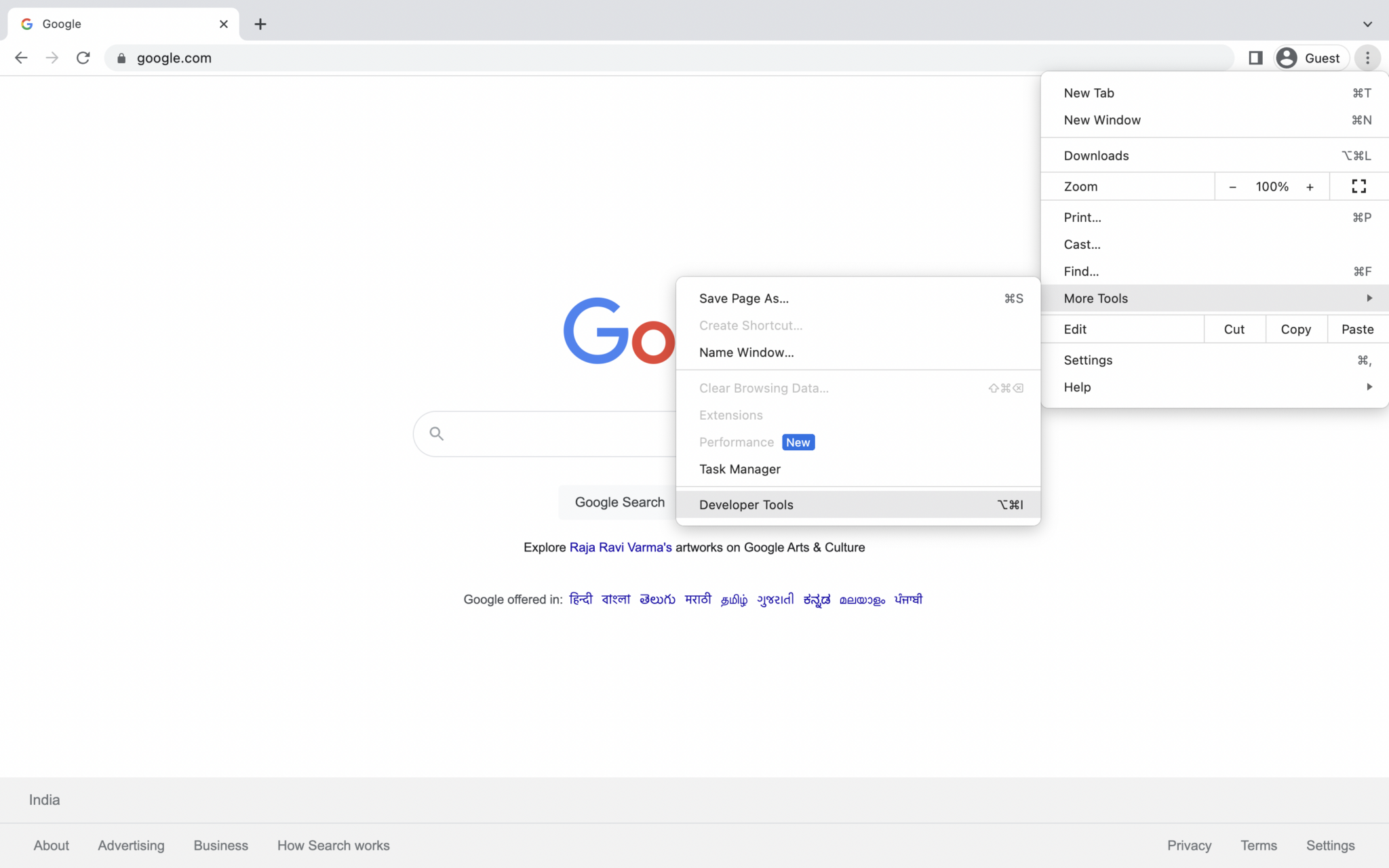
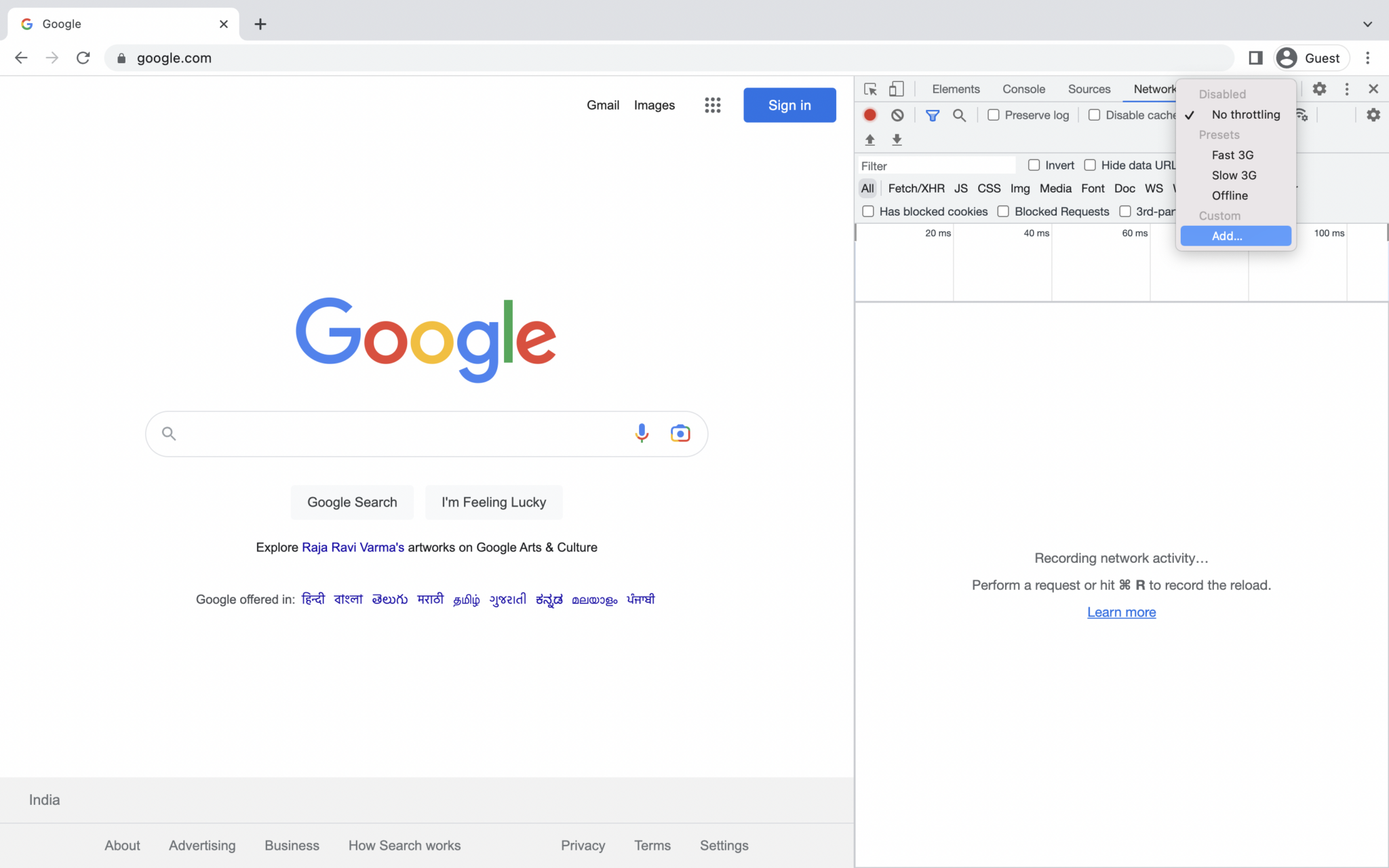
- Navigate to the Network Tab and open the Throttling dropdown which is set to No Throttling by default.
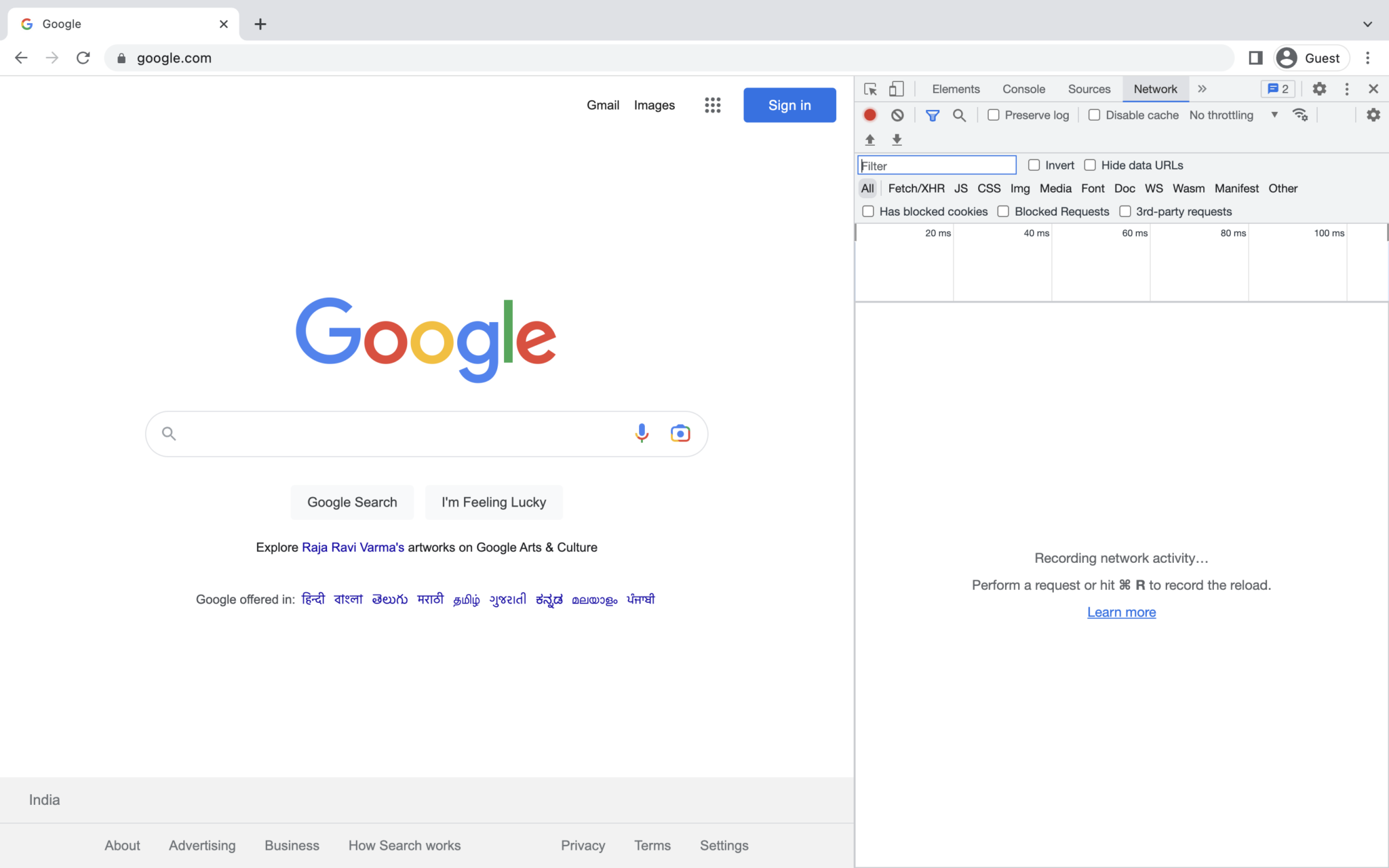
- From the dropdown menu highlighted (as shown in the image above), select Slow 3G.
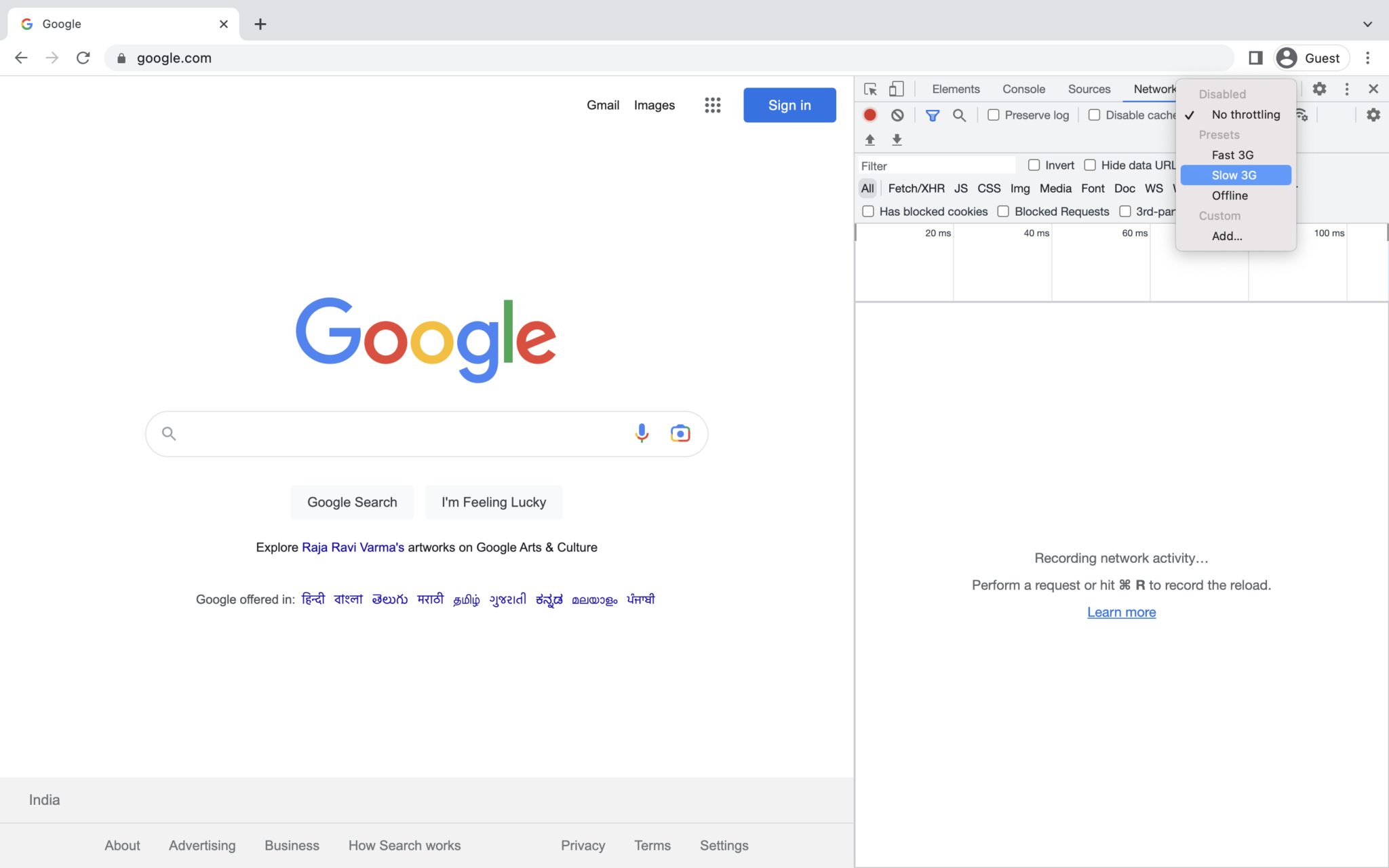
- To add Custom Network, click on Add.
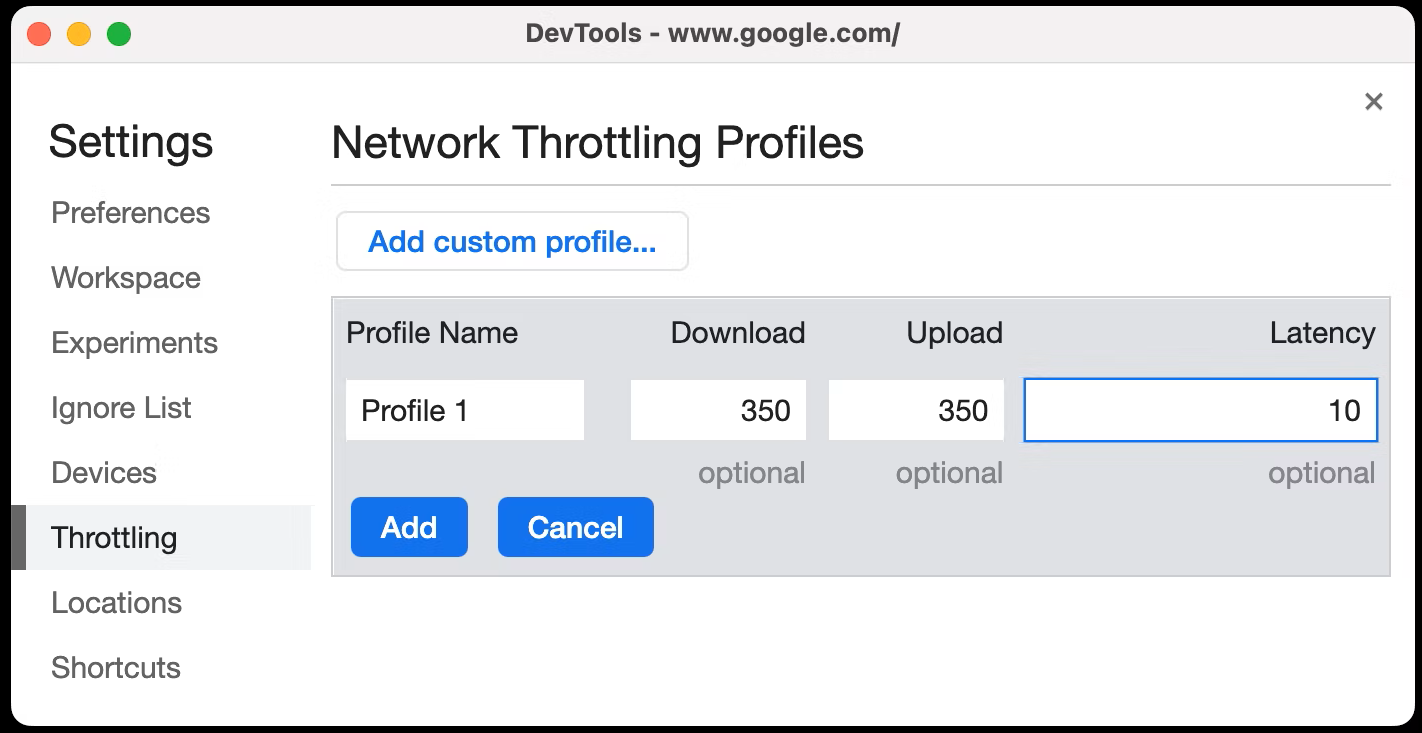
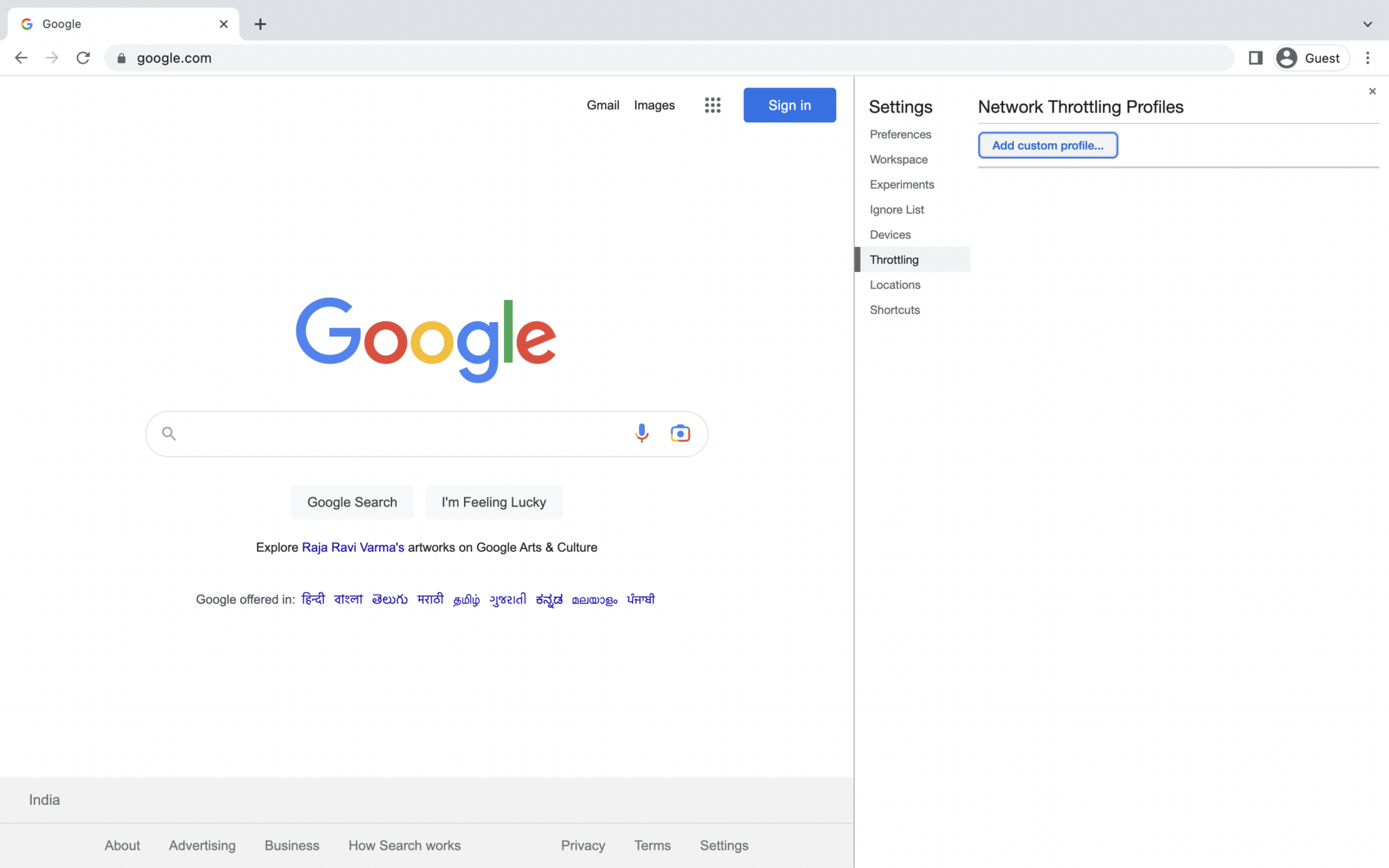
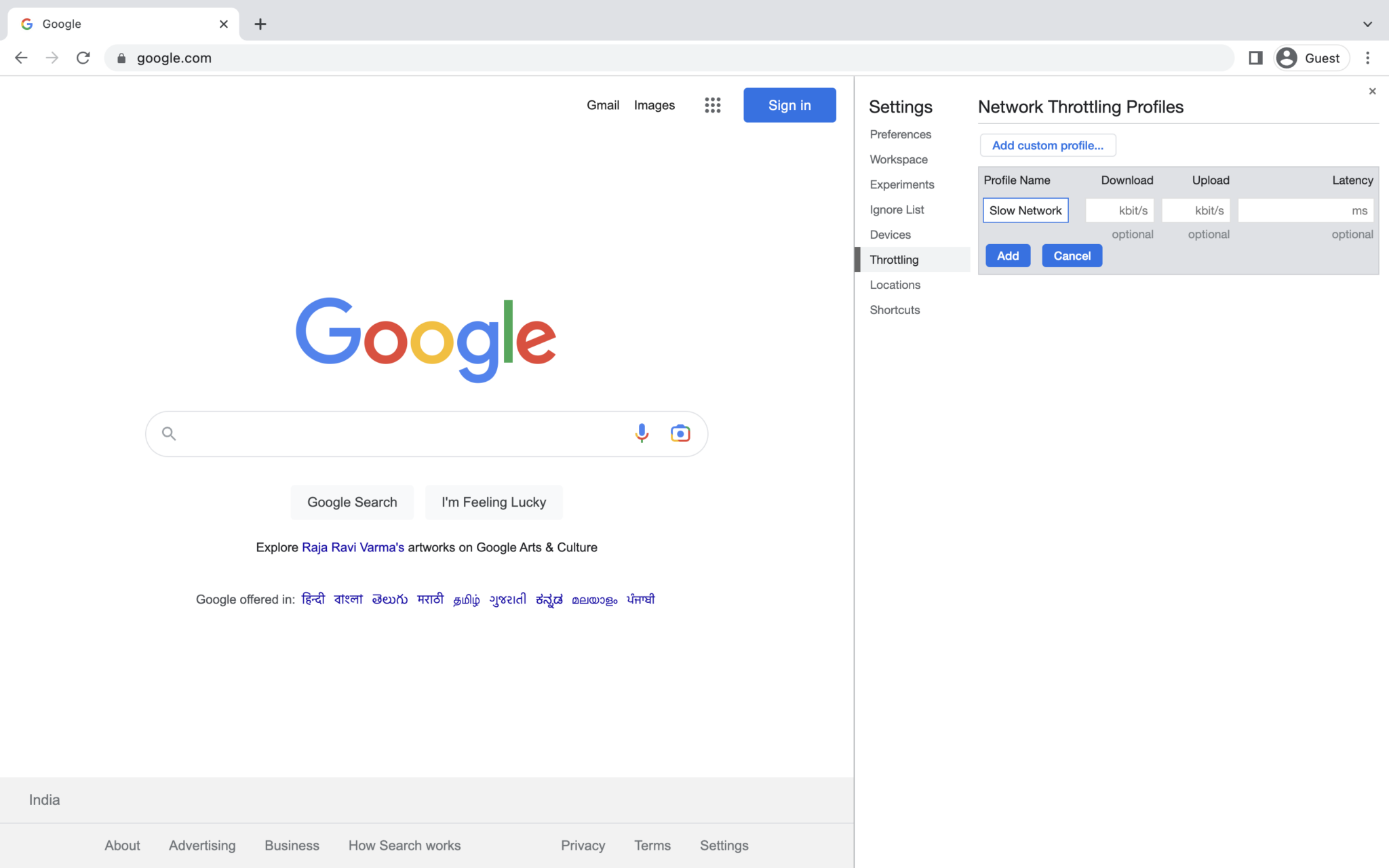
- Then, click on Add Profile and fill in the required details to create a Custom Network Profile.
As the browser usually loads the page from the cache, users must select the Empty Cache And Hard Reload option. It forces the browser to load all the resources. This is helpful in examining how a first-time visitor experiences a webpage loading on slow 3G speed.